
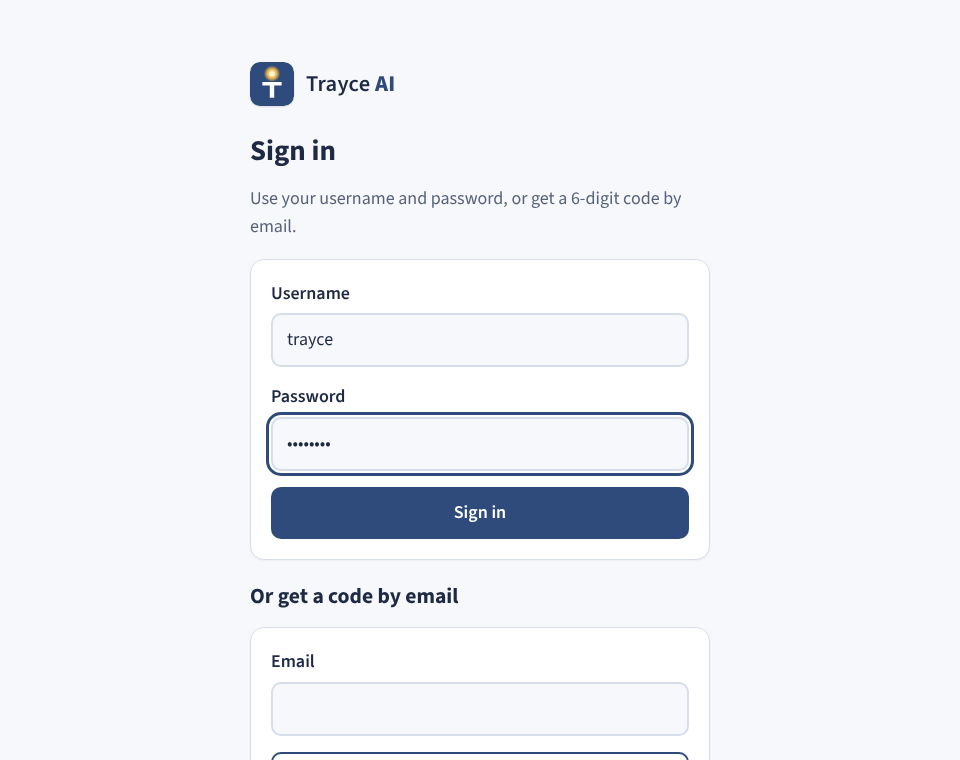
Sign in
Go to trayce.appmajic.ai on your computer or phone and choose Sign in. Type your username and password, and you land right in your chat.
Pull up a chair. We will go one screen at a time, in the order you will use it, from signing in to your first real day on the line.
Go to trayce.appmajic.ai on your computer or phone and choose Sign in. Type your username and password, and you land right in your chat.
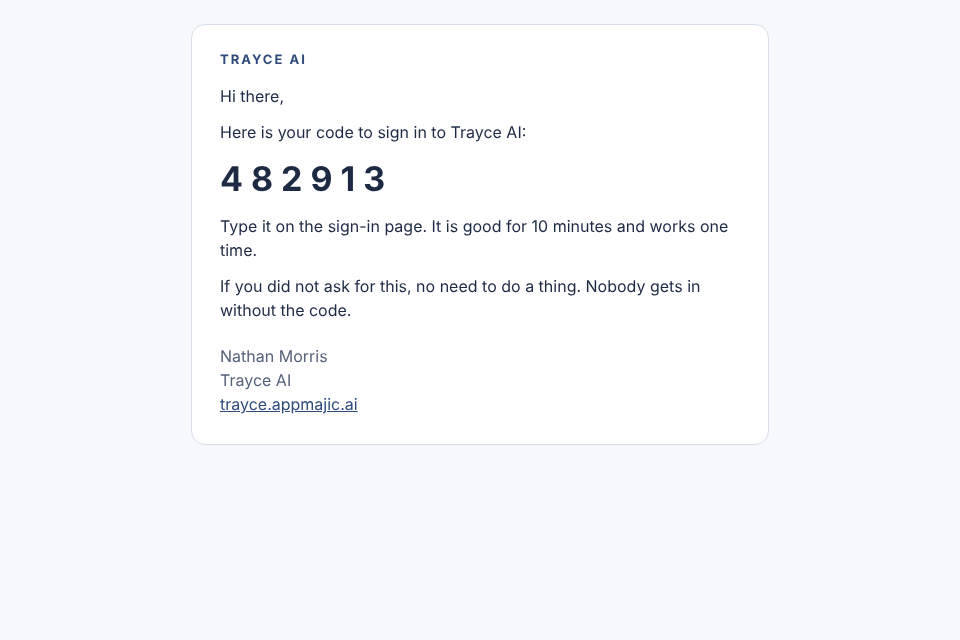
Password not handy? Type your email in the lower box instead. A 6-digit code shows up in your inbox from Trayce AI. Type it in and you are in. The code is good for 10 minutes and works one time.
Your seven tools are waiting: Prayer writer, Verse and teaching finder, Letter helper, Shift notes, Affirmations, Resource finder and A quiet minute. Pick one, or just type what you need in plain words.

Open Caller at the top of the window. Tap the buttons that fit: age group, gender, mood, relationship, who they are praying for and what it is about. Add a few words if you like. No names or personal details go in, and phone numbers, emails and addresses are taken out.

A new chat opens with fitting Bible verses, a short prayer and the ways prayer lines and crisis lines recommend helping, with an example of what to say. If crisis is picked, the crisis steps come first and it points to 988 and 911.

The browser beside the chat is the real thing. Watch it read unity.org, Daily Word and other pages and bring back what you need, with where it came from. When a step needs your OK, a card shows up in the chat and it waits.

Save a login once, under Settings, Vault and logins, and it signs in for you after that. It never shows or repeats the password.

For a big job, like a month of affirmations or a set of letters, a crew of helpers splits the work, works at the same time and brings back one report. You can watch each helper in the Agents panel.

There is nothing to install. Open trayce.appmajic.ai in the browser on your phone and sign in the same way. Your chats are right there.
Try it with the first thing you need on your shift: a prayer, a verse, a letter or your shift notes. Read it over when it comes back and make it your own. Nothing is sent or posted without your OK, and you stay the boss of it.